Phone Support
The red drives have a USB-C connector that can be plugged into a modern phone's charging port. You may have to remove your phone's case for the USB to be fully seated. When the red drive is properly connected it will flash with a white light in the body of the flash drive.

Android 7 and higher phone
Android 7 OS and higher for newer (post-2016) phones should support using a USB-C flash drive connected to the charging port. After connecting the drive you should see a message that says something like "USB drive added" or "USB storage device". Then swipe up from the bottom to open search and search for "Files". The first options will probably be "My Files". While this app can be used to copy the photos it does not have the ability to open links.
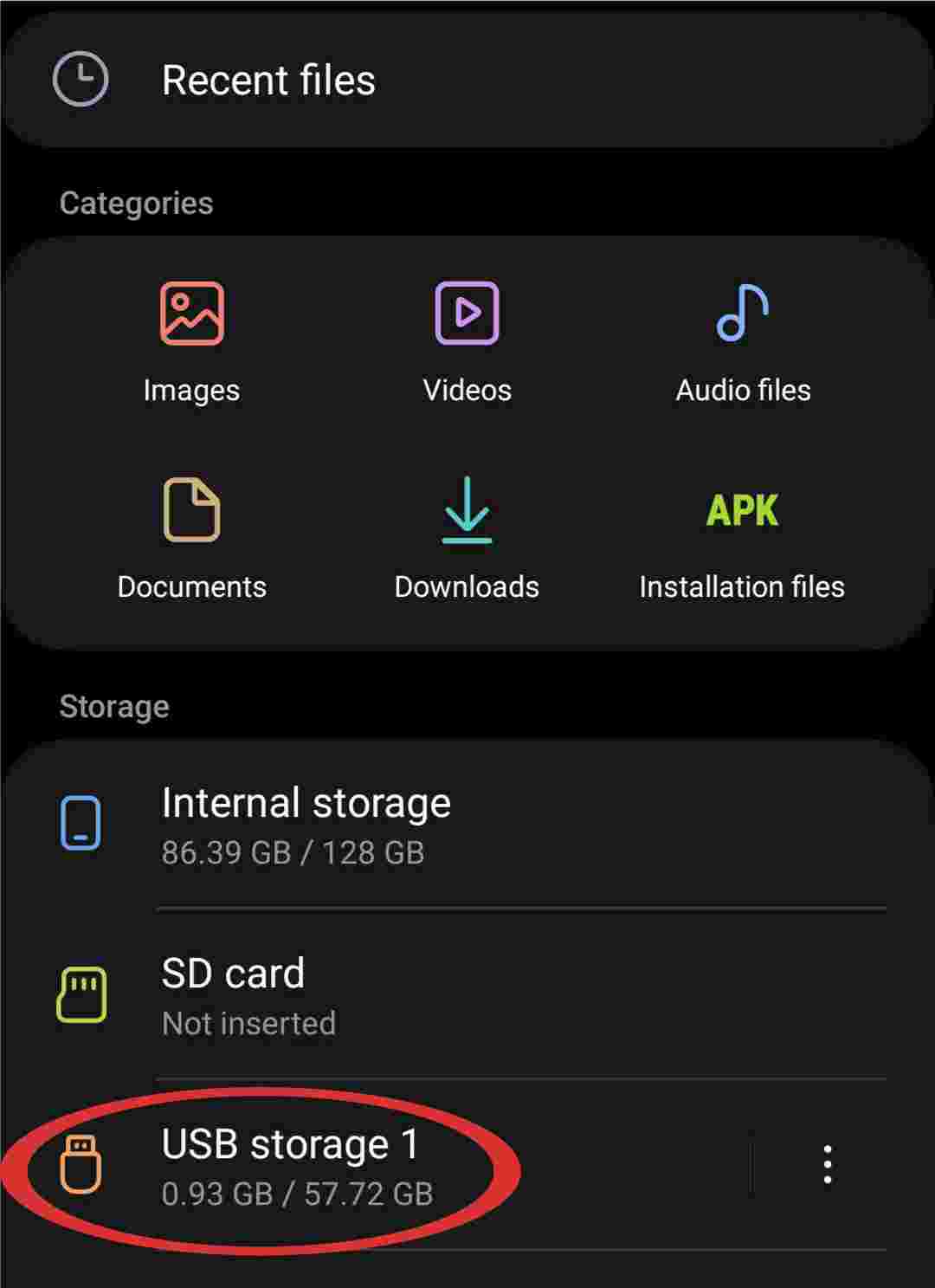
The drive should be visible in the Storage section of the Files app as either "GBEXPLORER" "USB storage" or on some systems as "USB NO NAME". (See the image to the right/below.) Select the drive and you will see the contents listed.
The easiest way to view the photos on a phone is to copy the files and folders to your phone. (The android operating systems may add a folders called "Lost.Dir" and "System Volume Information" - do not copy these folders.)
To view the captions directly you will need a "File manager app" such as "File Manager Plus". Not all file management apps have the ability to view hyperlinks, but we have successfully tested the free version of "File Manager Plus" on several devices.
Perhaps the best option is to just copy the Digital Image photos to your phone and view the captions on the internet via our Web Accesspage.
Not every android phone brand has the ability to view USB drives enabled. The functionality is called "OTG". If nothing happens when you plug your USB drive into the case-less phone you will need to enable OTG. This will be in Setup options under "Storage" or "Additional Settings" - unfortunately every phone brand is a little different. If you can't quickly find these options do an internet search for "how to enable OTG on xxxx" where xxxx is your brand and model of phone.
iPhone 15 and higher
iPhones older than an iPhone 15 have a lightning port, rather than a USB-C port and cannot access the images without a physical drive adapter (Lightning to USB-C)
You may need to remove your phone from your case to be able to insert the drive. When the drive is fully seated it will have a flashing white light in the body of the flash drive.
Open your “Files” app
Under "Locations" touch the "GBEXPLORER" or “NO NAME” listing.
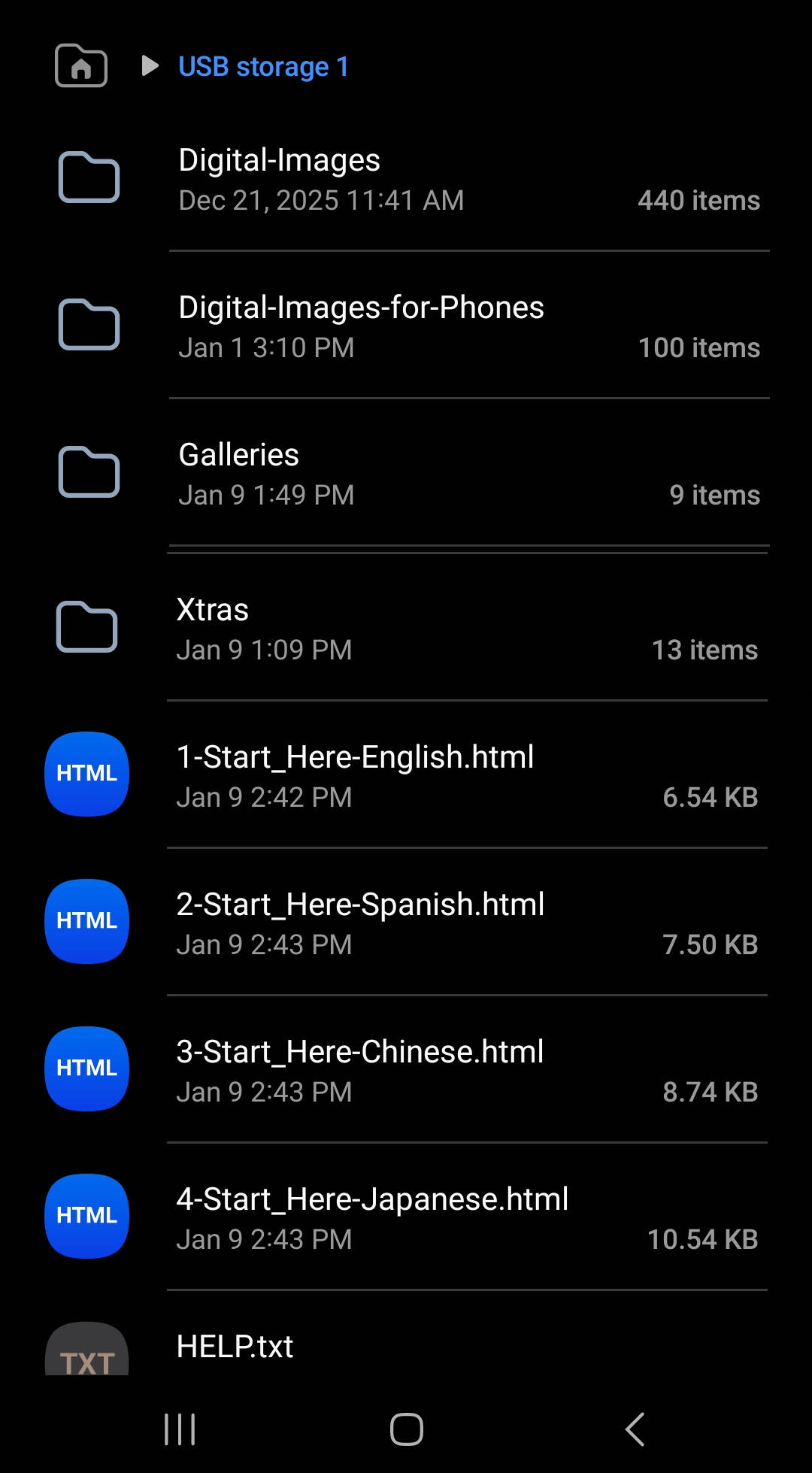
Within the GBEXPLORER location, you can access three folders with photos and files:
“Digital Images” contains 440 photos.
“Digital-Images-for-Phones” contains 100 vertical images.
“Xtras” contains 13 maps, lists and miscellaneous files.
Within each of these folders, you can view photos or download them, but only one at a time.
Connected! What next?
Option A - Copy the full drive to your device. Copy all the folders and files at once and put them in a new folder on your device. You should then be able to open the Start_Here files and view the captions on your device via an app such as "File Manager Plus".
Option B - Copy just the high resolution images. Copy only folders \Digital-Images and \Digital-Images-for-Phone. You will not be able to view the drives captions pages but the photos have the captions embedded in the metadata. You might be able to view the captions via an app.
Option C - Copy only the images you want. Select the photos you want from folders \Digital-Images and \Digital-Images-for-Phone and copy them to your device, probably to the \Pictures folder.
Option D - Don't copy anything, just view the captions and photos from the flash drive via an app such as "File Manager Plus". While this works it is perhaps inconvenient to have the drive connected while you use it. But it is a good way to initially view the photos and drive folders while you decide how you will use the drive long-term.
Web Access to View the Captions
A great option for viewing the captons is to visit our Web Access link. One advantage of Web Access is the ablity to swipe left and right to scroll through the captions and galleries.
You may want a 'hybrid' use of your drive... copy the folders with the images to your device, but use the website to browse the captions.