Smart TV Support
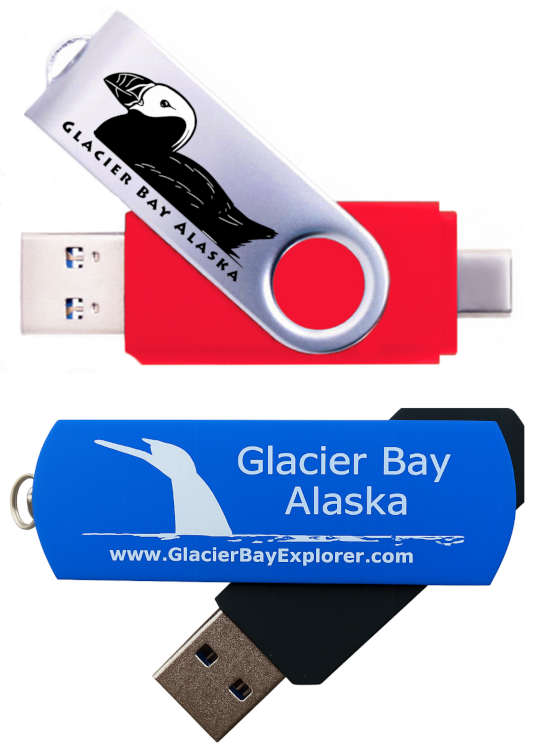
The USB-A connector of either drive can be inserted into the USB-A port on your Smart TV.
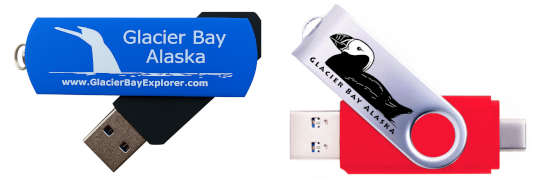
Smart TV's vary widely in how they display and control USB options and photo viewing. Below is a general guide but if it does not help you then you can click this link to see a Google AI search - then specialize the link by changing the xxxx to your make and model of Smart TV: How to view USB photos as a slideshow on a xxxx.
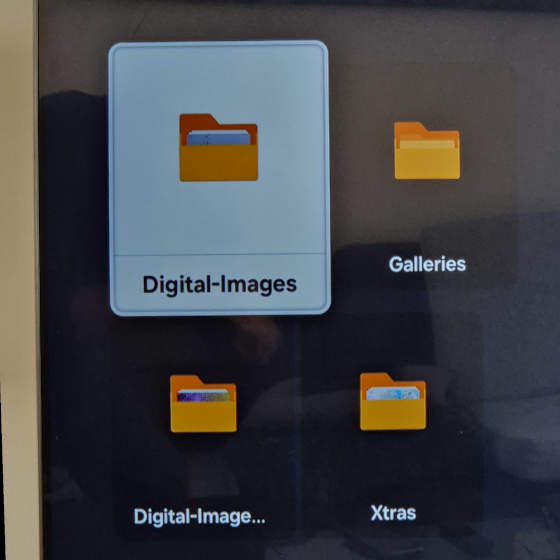
Your Smart TV may detect the USB and bring up a dialog box asking what to do. If not you will need to use your remote to go to Menu or Settings or Source options and find and open (press the remote center button) the USB. In the listing of the contents of the USB you should maneuver to and open the folder called Digital-Images.
Open an image and the image should fill the screen and start a slideshow. Slide show controls are often a down toggle on the remote. Setup options should be available via the classic "Setup icon" which may be postioned to the far right. One useful option is the speed. Slow is generally better for nature photos. Another useful option will be to have the photos full screen or zoomed.
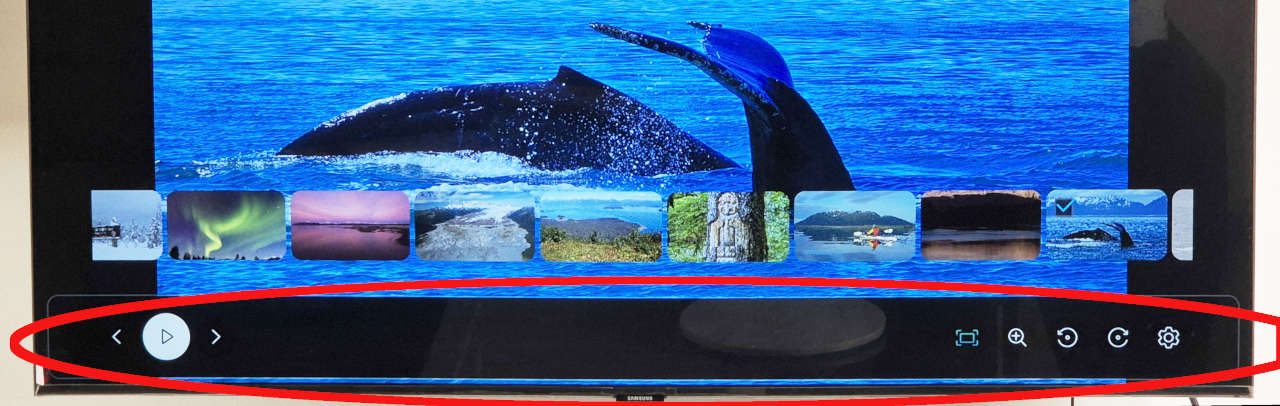
If the photos are not appearing full screen you may need to go back to the main menu and look for "Picture Size" or "Aspect Ratio" or "Screen Fit" or "Zoom". Then choose an option "Full" or "Fit", Stretch would probably distort the photos.
Note that TV's screen colors are generally optimized for movies, not photo jpg files. Colors may appear washed out or unnatural. Some slide show controls may have an option to 'Adjust the screen' which may help. Other TV's may have have options for "Picture Mode" configuration in the main menu. For specific help making these changes run this search and change the xxxx to your make and model of TV: How to change picture mode on a xxxx.
Web Access to View the Captions
It is not really possible to view the captions from the flash drive on most Smart TVs. Instead you could view the captions from your phone, tablet or computer via the simple to use Web Access link. One advantage of Web Access is the ablity to swipe left and right to scroll through the captions and galleries.